Assigning data to a volumetric case
On the Assign Data form (model > Volumetrics) you assign a 3D grid to your volumetric case. Then, you can either assign a fluid model and a saturation model, assign only a fluid model, or choose not to assign any of them. For more information on how JewelSuite defines the fluid legs, see Fluid leg definitions and volume calculations.
To assign data to your volumetric case
- From the Case drop-down list, select the case of interest.
- From the 3D Grid drop-down list, select the grid of interest.
- In this step, you have three options to choose from, regarding the fluid model and the saturation model.
- You can skip assigning and proceed to step 4.
- You can assign only fluid model, by selecting from the related drop-down list, and proceed to step 4.
- You can assign both fluid model and saturation model, by selecting from the related drop-down list, and proceed to step 4.
- Click Apply to assign the data and keep the form open, or click OK to assign and proceed to the 3D Grid Properties step.
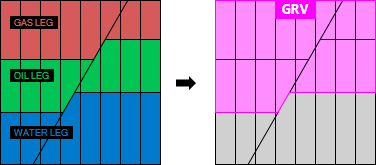
When you skip assigning, the fluid leg definition and GRV will be based on 'Saturation Cell Values'. See Fluid leg definitions and volume calculations for more details. click to enlarge
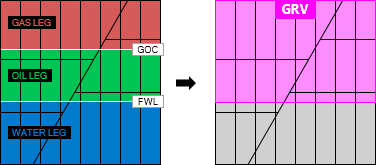
When you assign a fluid model and a saturation model, the fluid leg definition and GRV will be based on 'Fluid Levels'. See Fluid leg definitions and volume calculations for more details. click to enlarge